

Pagero (a Thomson Reuters Company) is Hitachi Energy’s chosen e-Invoicing partner.
If you don’t already have an e-invoice provider, you can send e-invoices to Hitachi Energy via Pagero.
Below are instructions on how to create an account which will allow you to manually create your invoices.
If you require a more automated solution you can contact the Pagero team to further discuss your requirements https://www.pagero.com/contact
Pagero & Hitachi Energy Companies
- Belgium
- Canada
- Croatia
- Czech Republic
- Denmark
- Finland
- Germany
- Great Britain (GB)
- Hungary
- India
- Malaysia
- Norway
- Portugal
- Saudi Arabia
- Spain
- Sweden
- Switzerland
- The Netherlands
- United States
Belgium
| Receiving company | Hitachi Energy Belgium N.V. |
| VAT Number | BE0725921769 |
| Peppol Participant ID | 9925:BE0725921769 |

Frequently Asked Questions
To create an account please follow these steps:
- Go to https://app.pageroonline.com/signup/
- Select your company’s country from the dropdown list
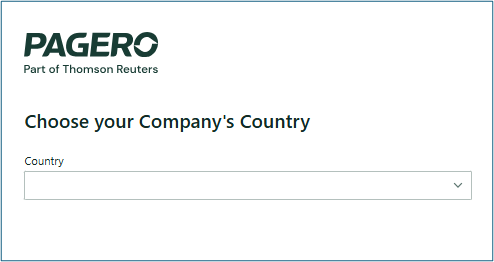
- Enter your company details, company identifier/s and your user details.
- Any field marked with a red asterisk is mandatory.
- Click Create account.
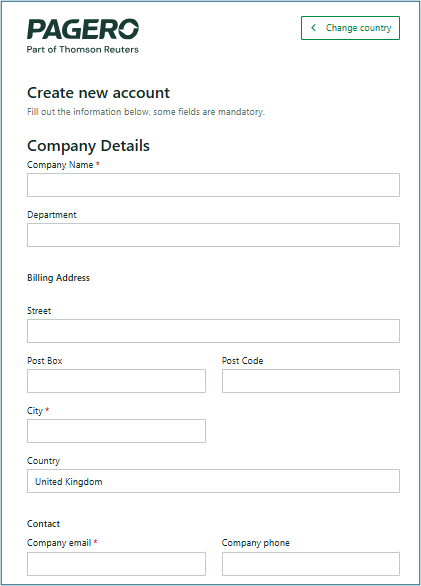
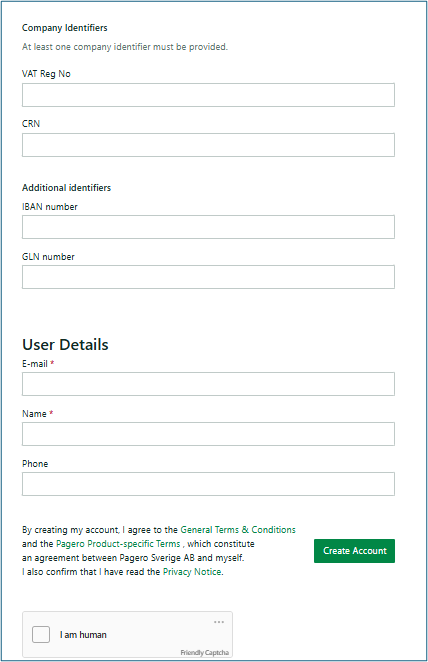
Your account is now created!
An activation email will be sent to the email address used in registration. In the email, you will find a link to activate your user account in Pagero Online
Click on the link, you must read and approve the user agreement then choose a password, continue then to Pagero Online.
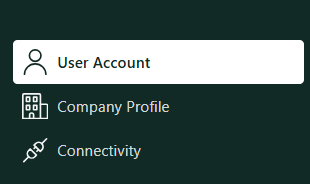
Log in to Pagero Online with your username and chosen password. You can access your user info from the home page by clicking User Account on the lower left side of the page.
Adding additional Users
You can now also add any additional users to your account by navigating to ‘Company profile' on the lower left side of the page.
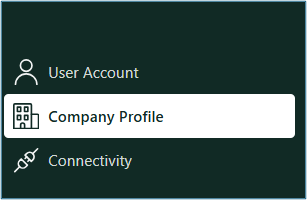
Select users from the menu which appears along the top.

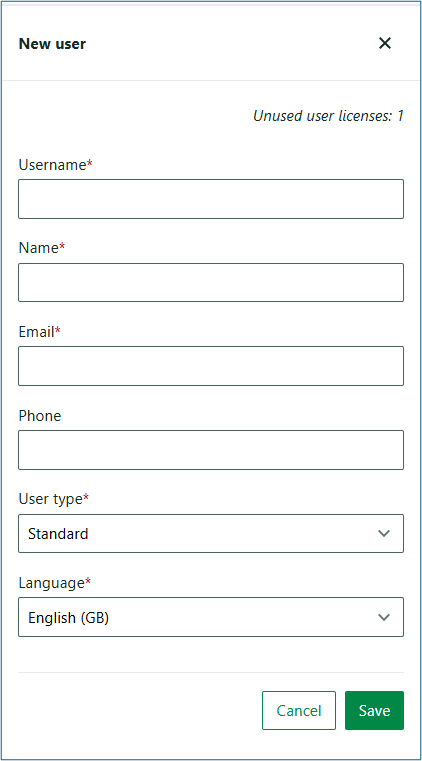
- Click 'Add new user' to add additional users to your account.
- Select 'Standard User' for the User Type field.
- Click 'Save'
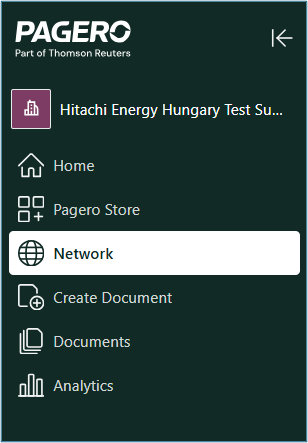
Click on 'Network' in the menu along the left side of the Screen
Enter the name of the Hitachi Energy legal entity you transact with in the search field and search
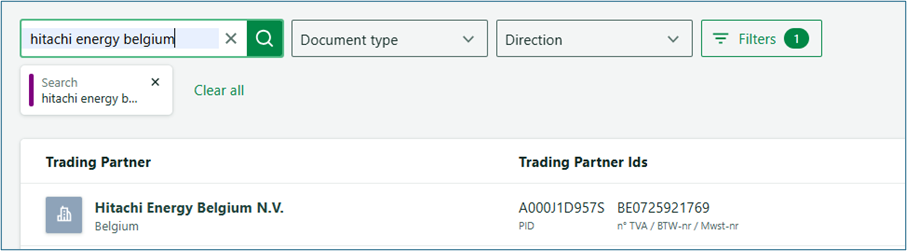
- Once you have located your Hitachi customer, click on their name and click connect. Select that you wish to send invoices to this customer.
- Select Pagero as your service provider.
- Click send request.
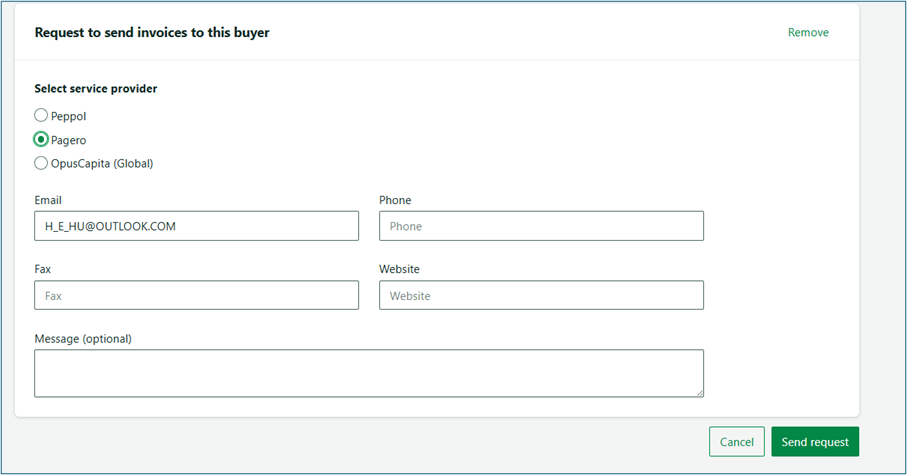
If the recipient supports automatic connections you will be notified you are ready to start sending them invoices. If the recipient needs to approve the request you will be notified that the request has been sent.
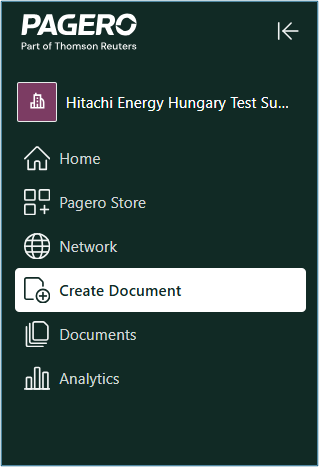
Click 'Create Document' on the menu on the left side of the page
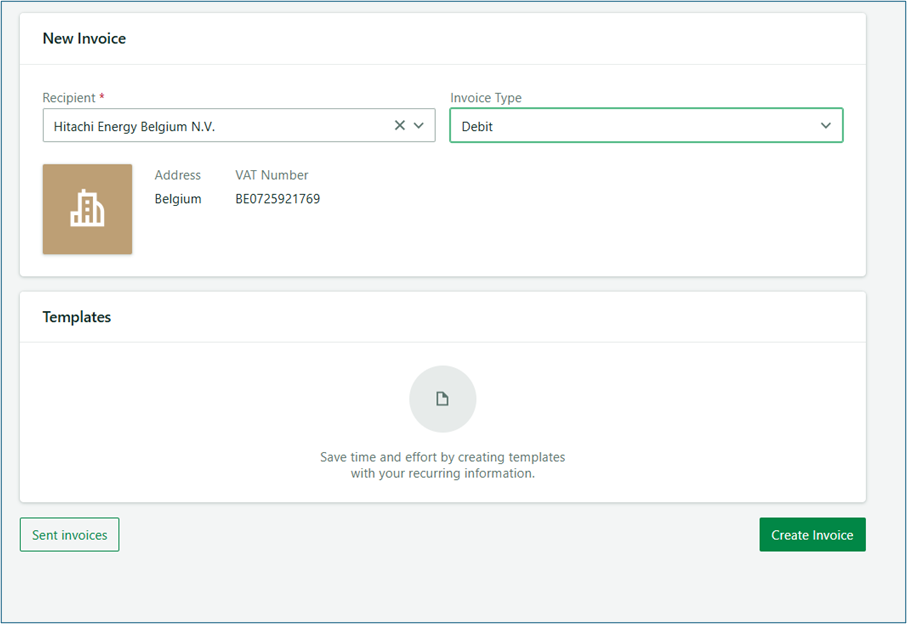
- Select the invoice recipient and document type from each of the drop down menus
- Click 'Create Invoice'
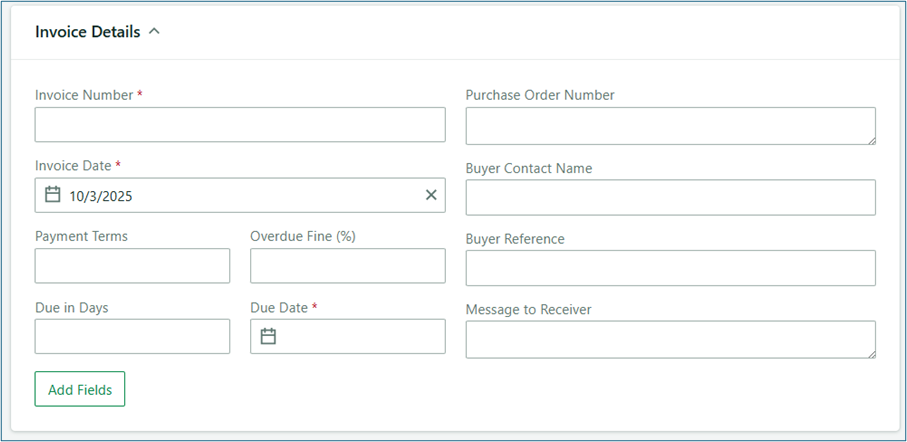
- Enter your invoice Details
- Fields marked with red asterisks are mandatory
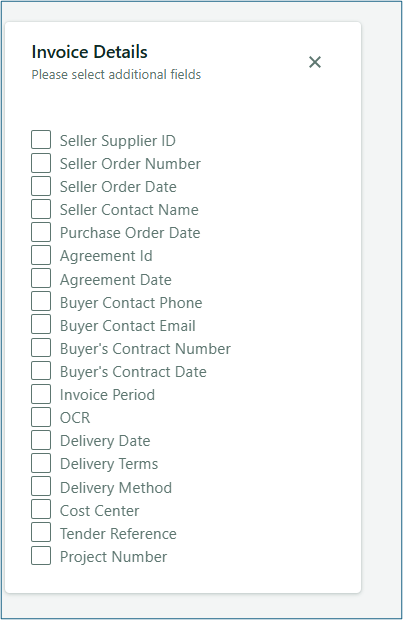
- You can select to add additional fields to the invoice by selecting 'Add fields' in each section of the invoice
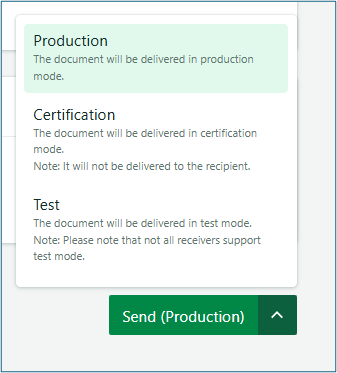
- Once you have finished entering your invoice details you can select your 'Send Mode'
- You can select Production, Test or Certification. More details on each of these can be found here
- Can't find the correct Hitachi Energy entity: Confirm the exact legal name from your Hitachi Energy contact or purchase order.
- Activation email missing: Check spam/junk and verify the address under User Account. Resend the activation if needed.
- Validation errors on send: Switch to Test mode to review error messages, add missing mandatory fields (often PO number, tax ID, or line details), then resend.
